Hi, I’m Lena Nadir.
In the previous post, we used Web Search to go from creating a basic Agent all the way through calling it via the Python SDK.
In Part 2, we’ll cover File Search, which gives an Agent its own knowledge base. Where Web Search retrieves the latest information from the public web, File Search draws on private documents held within your own organization — two clearly contrasting approaches.
Updated August 2026: revised wording to match Microsoft Foundry’s current naming.
1. Implementation Scenario (Case Study)
This time, we’re building a vehicle-support Agent for dealership staff, backed by a knowledge base of owner’s manuals (PDFs) for the “Astra” model line sold by a fictional car dealer, “Velan Motors.” Here’s the architecture:
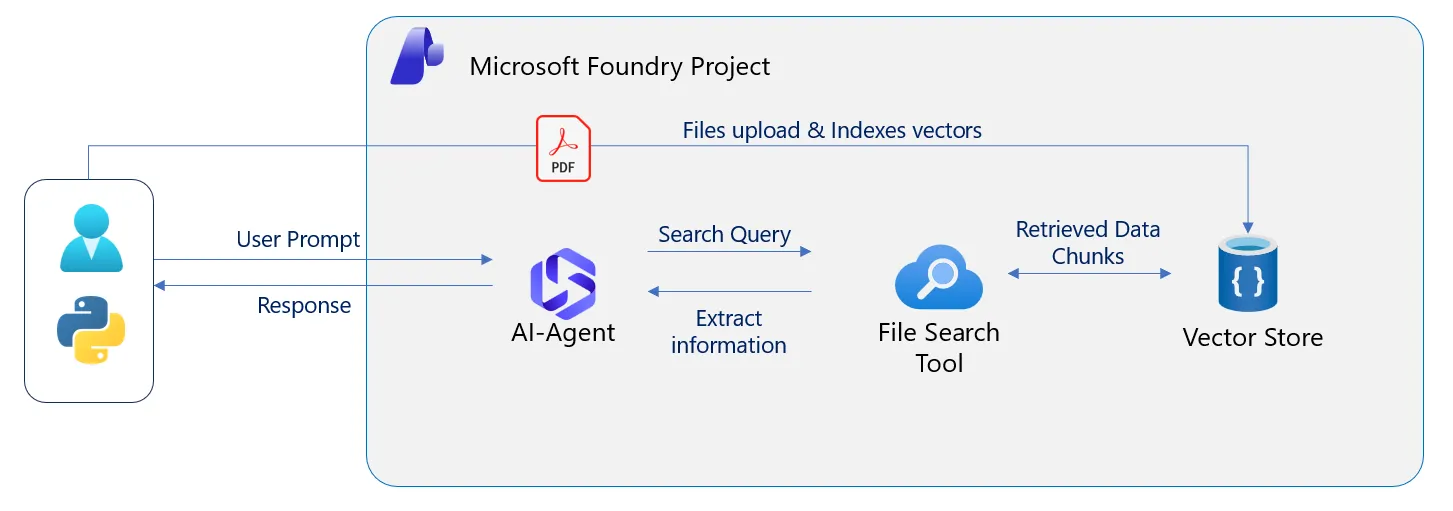
File Search RAG architecture: PDFs are uploaded and indexed into a Vector Store, and the Agent searches that Vector Store via the File Search Tool
1.1. Documents (Owner’s Manual PDFs)
As the knowledge base, we prepare six PDF owner’s manuals (3 grades × 2 generations). Each manual is organized into seven sections: Key Specs, Exterior, Interior, Features, Safety & Comfort Equipment, Warranty & After-Sales Service, and Scheduled Maintenance.
📝 Note: Download the sample PDFs (6 files) from this article’s GitHub repository. Each PDF ends with a disclaimer stating: “This document is a fictional work generated by an LLM (generative AI) and bears no relation to any real vehicle or specification.”
1.2. Target File List (Vector Store)
| Grade | Positioning | 2026 Model (Current) | 2021 Model (Previous Generation) |
|---|---|---|---|
| Astra Prime | High-end | astra-prime-2026.pdf | astra-prime-2021.pdf |
| Astra Core | Standard | astra-core-2026.pdf | astra-core-2021.pdf |
| Astra Base | Entry | astra-base-2026.pdf | astra-base-2021.pdf |
We upload these six files as-is to a Vector Store, making them the search target for File Search.
1.3. Expected Agent Behavior (File Search)
- Answers only based on the content of the uploaded manuals. Because Astra is a fictional model, it’s easy to tell whether the Agent is answering “plausibly” from general web knowledge instead — i.e., whether it’s hallucinating
- Handles both pinpoint lookups within a single file and comparisons across multiple files
- Presents the source file name in its answers via
file_citation
2. Prerequisites
- A Microsoft Foundry project (the same one from Part 1 works fine)
- A Python environment (
pip install azure-ai-projects azure-identity) - Sample PDFs / source code: clone the repository with the command below
git clone https://github.com/lena0520/tech-hands-on-labs.git3. Setting Up the File Search Tool in Foundry Portal
- 3.1. Open the edit screen for the Agent you created in Part 1 (or a new Agent), and add File Search in the Tools section
- 3.2. Create a new Vector Store (the actual entity behind the knowledge base), or attach an existing one
- 3.3. Upload all six PDFs (e.g.
astra-prime-2026.pdf) together (drag-and-drop, or choose files) - 3.4. Wait for indexing (embedding generation) to finish, and check the status
3.1. Clicking Add tools opens the Select a tool dialog. Select File search from the list and click Add tool.
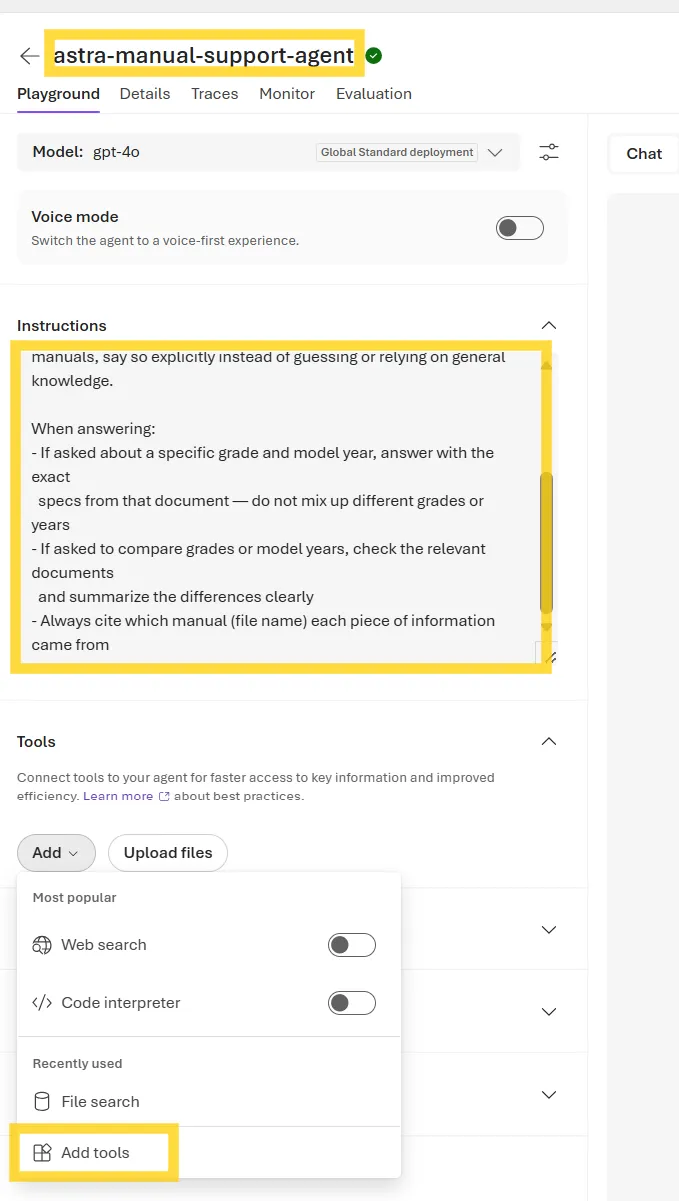
The Agent edit screen. Add File Search via Add in the Tools section
📝 Note: The Instructions field at the top of the screen is covered in detail in the “Configuring Instructions” section below.
3.2.–3.4. In the Attach files dialog, leave Create a new index selected and drag-and-drop the six PDFs to upload them. Once every file’s Status shows Success, indexing into the Vector Store is complete. After attaching, remember to click Save on the Agent’s edit screen.
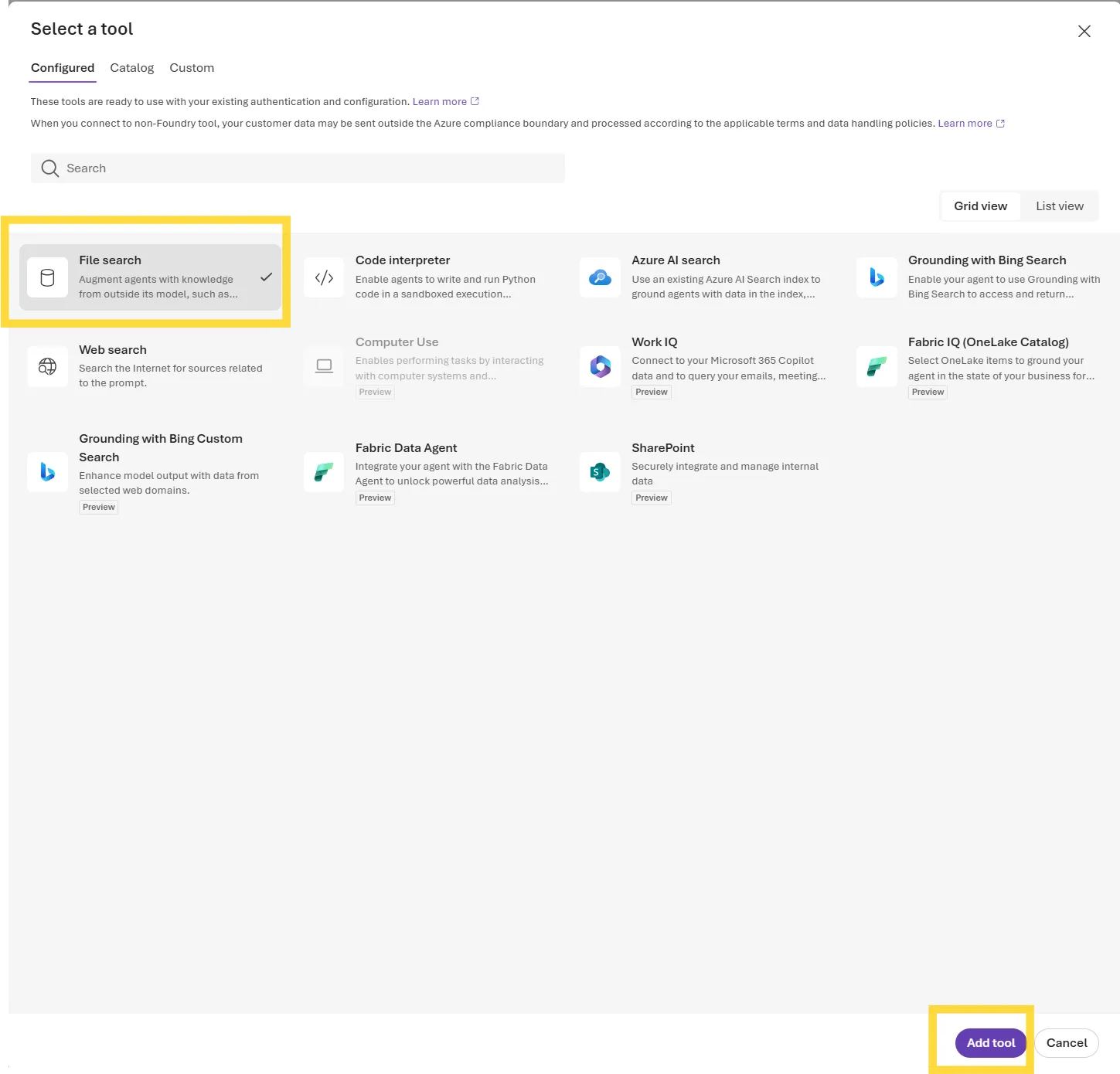
Selecting File Search in the Select a tool dialog
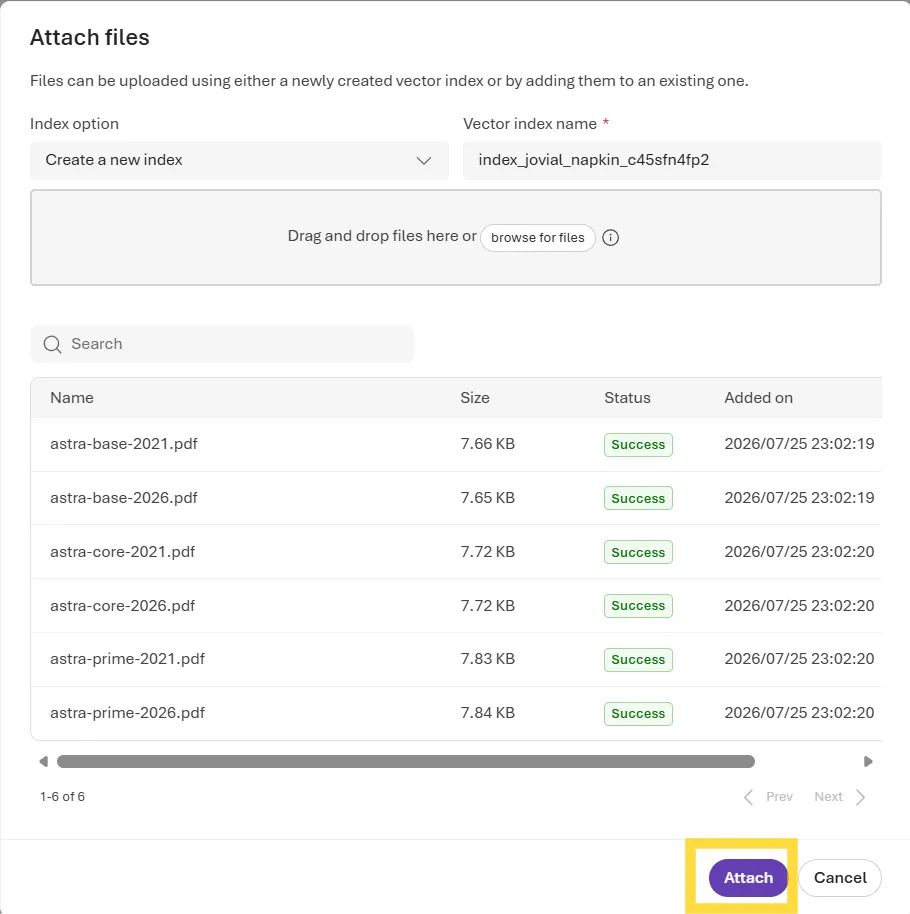
All six PDFs uploaded successfully (Status: Success)
4. Configuring Instructions
In Instructions, first state explicitly that the Agent should answer only within the scope of the uploaded materials. Adding a line that guards against hallucination — instructing the Agent to say so explicitly when the manuals don’t cover something — is also good practice from a Responsible AI standpoint.
Below that, the “When answering:” section instructs the Agent to keep grades and model years straight, summarize differences for comparison questions, and cite the source file name. The citation rule in particular lays the groundwork for the file_citation verification we do later (in “5. Testing in Playground (Foundry Portal)” and “7. Checking the Results”).
Draft Instructions template:
You are a product support assistant for Velan Motors dealership staff,
specialized in the uploaded Astra owner's manuals (6 PDFs covering 3
grades x 2 model years).

Answer only based on the uploaded manuals. If the answer isn't covered in the
manuals, say so explicitly instead of guessing or relying on general knowledge.

When answering:
- If asked about a specific grade and model year, answer with the exact
  specs from that document — do not mix up different grades or years
- If asked to compare grades or model years, check the relevant documents
  and summarize the differences clearly
- Always cite which manual (file name) each piece of information came from
5. Testing in Playground (Foundry Portal)
We send questions like the following to Playground, to test whether the Agent can answer accurately using only the manuals’ content.
What are the seat material and wheel size for the Astra Base?Compare the price and interior equipment across the three Astra grades
(2026 model). Which one offers the best value?When will the successor to the Astra be released?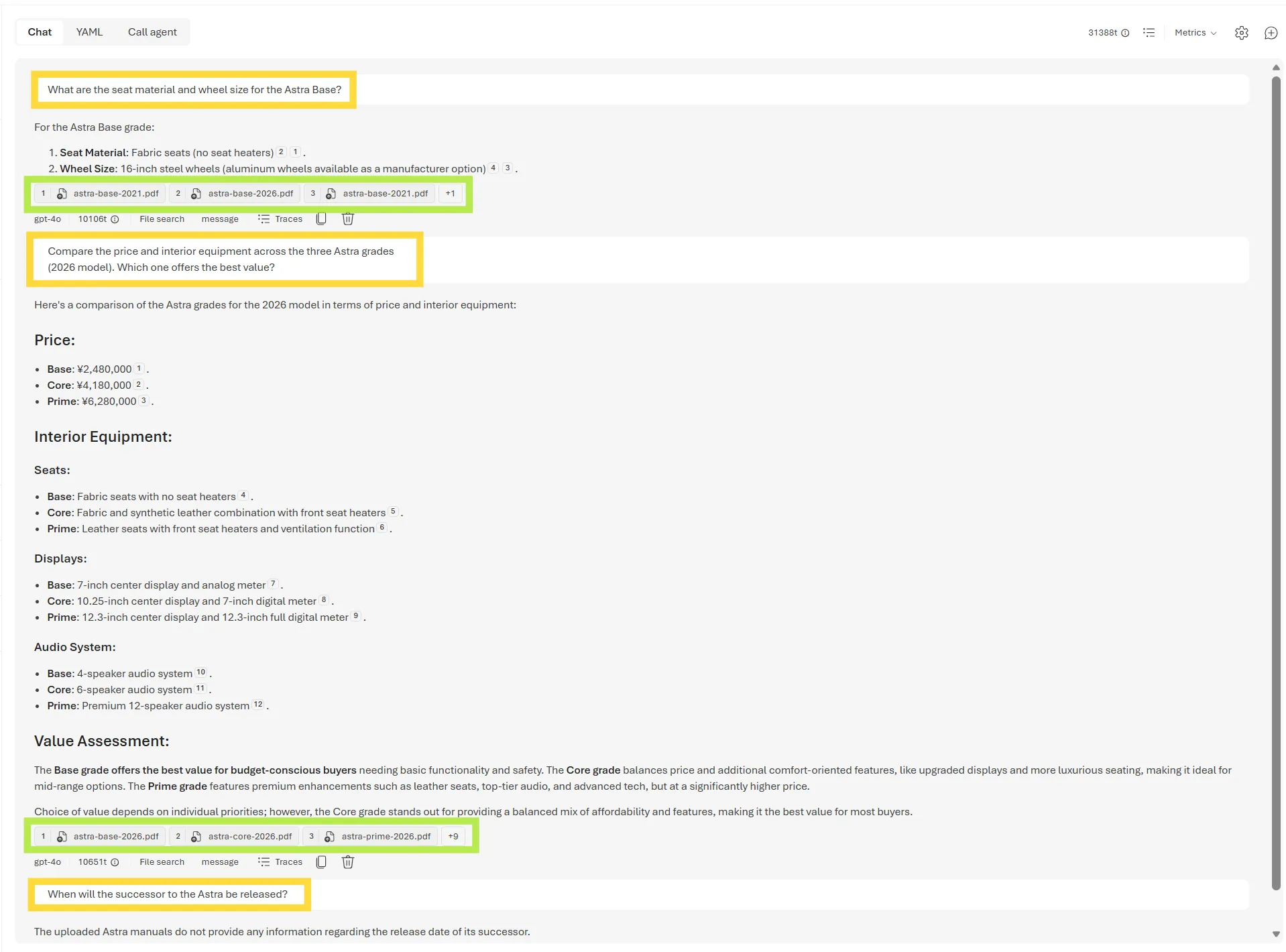
Three test results in Playground (yellow box: the question asked; green box: the file_citation attached to the answer)
- Question 1 checks a pinpoint search within a single file, question 2 checks a cross-grade comparison/summary, and question 3 checks resilience against a question the manuals don’t cover — three different search patterns
- Since question 3 isn’t covered in the manuals, the Agent correctly answers, without a citation, that the information isn’t available
6. Calling the Same Agent from the Python SDK
- Follow the same flow as Part 1: create a new
conversation, then callresponses.create() - The File Search–specific difference: the
annotationstype becomesfile_citation - Streaming event handling is based on Part 1’s code; only the citation-extraction part is shown as a diff
6.1. Creating a Vector Store in Code
If you already uploaded the six manual PDFs and created a Vector Store in Foundry Portal, skip this section. Just copy the Vector Store ID (vs_...) shown in Foundry Portal’s Knowledge tab and assign it as shown below — that’s all you need.
VECTOR_STORE_ID = "vs_..." # Use the ID exactly as shown in Foundry Portal's Knowledge tabIf you’d rather skip Foundry Portal and create the Vector Store and upload the PDFs purely in code, use the code below.
⚠️ Caution: If you already created it in Foundry Portal, you don’t need to run the code below. Running it anyway will create a duplicate Vector Store with the same content.
vector_store = openai.vector_stores.create(name="astra-owners-manuals")
print(f"Vector store created (id: {vector_store.id})")

pdf_files = sorted(MANUALS_DIR.glob("*.pdf"))
print(f"Uploading {len(pdf_files)} manuals...")

for pdf_path in pdf_files:
    with open(pdf_path, "rb") as f:
        openai.vector_stores.files.upload_and_poll(
            vector_store_id=vector_store.id,
            file=f,
        )
    print(f"  uploaded + indexed: {pdf_path.name}")

VECTOR_STORE_ID = vector_store.id
6.2. Defining the Agent in Code
Instead of configuring things manually in Foundry Portal, you can also create the Agent itself purely through the Python SDK. This code assumes VECTOR_STORE_ID has already been set (via either method above).
from azure.ai.projects.models import PromptAgentDefinition, FileSearchTool

agent = project.agents.create_version(
    agent_name=AGENT_NAME,
    definition=PromptAgentDefinition(
        model="gpt-4o",
        instructions=AGENT_INSTRUCTIONS,
        tools=[FileSearchTool(vector_store_ids=[VECTOR_STORE_ID])],
    ),
    description="Answers Velan Motors dealership staff questions using the Astra owner's manuals.",
)
print(f"Agent created (id: {agent.id}, name: {agent.name}, version: {agent.version})")
The “Tools → Add → File search → Attach files” steps we did in Foundry Portal are consolidated into the tools parameter in code.
tools=[FileSearchTool(vector_store_ids=[VECTOR_STORE_ID])]:toolsonPromptAgentDefinitionis the list of tools given to the Agent. PassingFileSearchToolhere enables File Search.vector_store_idstakes a list, and you link the Vector Store ID (vs_...) you created earlier — either in Foundry Portal or in code — here. Because it’s a list, you can also specify multiple Vector Stores at once (e.g., splitting owner’s manuals and FAQs into separate Vector Stores and searching both)instructions=AGENT_INSTRUCTIONS: Passes through the Instructions template we defined earlier, unchangedproject.agents.create_version(agent_name=AGENT_NAME, ...): A call that creates a new version for the Agent with the specified name. Useful when you want to reproduce, in code, the same configuration as an Agent created in Foundry Portal — or when you want to manage the Agent’s definition itself via version control/CI/CD
Whether you use Foundry Portal or this code, you end up with the same result: “an Agent with File Search enabled.” Setting it up through either one is enough — doing both just creates a redundant new version of the same-named Agent, so be careful.
7. Checking the Results
- Code that extracts and displays the referenced file name and relevant excerpt from
file_citation - Confirm it matches the test results we saw in Foundry Portal
8. Summary
- Configured the File Search Tool and Vector Store (knowledge base) no-code in Foundry Portal
- Used Instructions to enforce answering strictly based on the uploaded materials
- Called it from the Python SDK and verified the source via
file_citation
Next time, we’ll cover Structured Outputs, which makes an LLM’s response easier to work with programmatically.
Confirmation Quiz (AI-103 Style)
Three questions styled after the actual AI-103 exam format (scenario setup + choose the best option). Check your understanding of this episode’s content.
Q1. You’re building an Agent for your company’s dealership staff that answers vehicle spec questions accurately, grounded only in your organization’s private owner’s manual PDFs. To make the Agent answer strictly within the scope of the uploaded documents — without relying on general web knowledge — which tool should you add to the Agent?
Show answer
Correct answer: B. File Search
File Search targets private documents your own organization has uploaded, which matches the requirement of answering strictly within the scope of the uploaded materials. Web Search retrieves the latest external web information, so it isn’t suited to a requirement grounded in private, internal-only information like an owner’s manual.
Q2. You want an Agent with the File Search tool enabled to recognize six PDF owner’s manuals as its search target. Which resource must you create in advance in Foundry Portal, and specify as the upload destination for the files — the entity that turns uploaded files into embeddings and makes semantic search possible?
Show answer
Correct answer: C. Vector Store
A Vector Store is the entity that stores uploaded files as embeddings and enables semantic search. The File Search tool references this via vector_store_ids to search the uploaded documents. Conversation and Thread are objects that retain conversational context, and are distinct from the file-search entity.
Q3.
You want an Agent using File Search to include the source manual’s file name in its answers. Which combination correctly describes the citation type returned as a response annotation when using File Search (the counterpart to Web Search’s url_citation), and how to retrieve the actual file name from it?
Show answer
Correct answer: C
When using File Search, the annotation type is file_citation, but what it contains isn’t the file name itself — it’s a file_id. To get a human-readable file name, you need a separate call to retrieve the file info, such as openai.files.retrieve(file_id).filename. This is in contrast to Web Search’s url_citation, which includes the url directly in the annotation.
Full Code
The code used in this article is published in the GitHub repository under azure/ai-103/episode-02-file-search-rag/.
💡 Want to Check Your Readiness Before Exam Day?
Once you’ve worked through the hands-on material, if you want to check whether your understanding is actually at exam level, I’ve published an AI-103 practice test collection on Udemy.
🎟 Launch coupon: RELEASE-CAMPAIGN (33% off, through 2026/09/24) → Apply the coupon here
© 2026 Lena Nadir. All rights reserved.